 Shaken
A little shake.
A lot less work.
Shaken is a free menu-bar app for macOS. While you drag a photo, a PDF, a link or some text, give the mouse a quick shake. A wheel of commands opens under the pointer. Drop on one, and the result is ready to drag into the next app.
Free and open source (MIT) · macOS 13 or later · Apple silicon and Intel · or brew install --cask noxhsxrk/nox/shaken
Psst: shake your mouse anywhere on this page.
How it works
Three moves, no detours
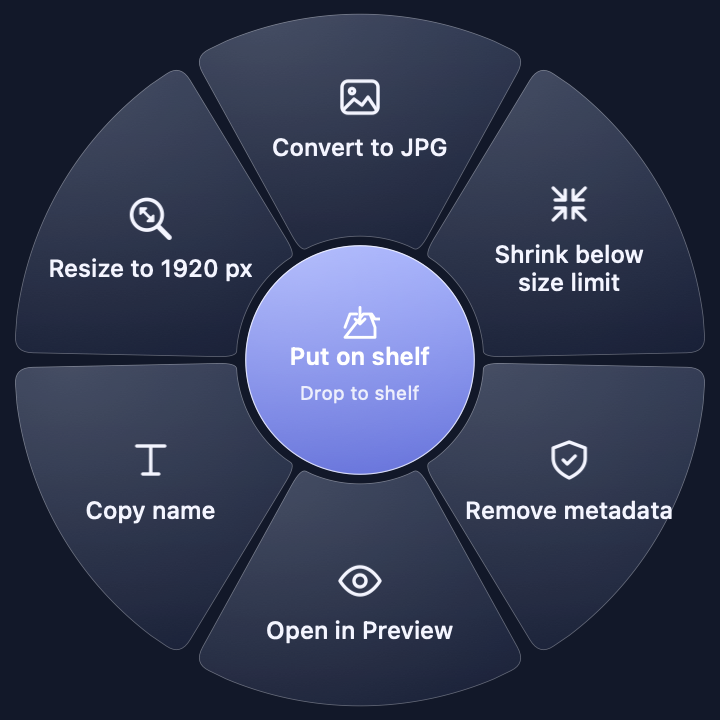
A HEIC photo needs to go into a form that only takes JPG. Normally that means open, export, find the file, then drag it again. With Shaken it takes one drag.
- 1
Drag and shake
Start dragging toward where it's going. Halfway there, shake the mouse left and right. The wheel opens under the pointer.
- 2
Drop on a command
Slide onto Convert to JPG and let go. Only commands that fit what you're dragging are offered.
- 3
Drag the result on
A chip with the new file appears where you dropped it. Drag it into the form. The original is untouched, and undo is one click.
Try it
The wheel knows what you're holding
Pick something to "drag". The wheel only offers commands that fit, and keeps every slot in the same place so your hand learns where they are. Point at a slot or press 1 to 6. Drag the wheel sideways, swipe with two fingers, or press ← → to turn to the next one, just like switching wheels in the app.
Drop on a slot
Your colors
Glass in your Mac's color
The wheel, the chip and the shelf take the accent color you chose in System Settings › Appearance. Prefer something else? Pick Shaken blue or any color in Settings, and how strongly the glass is tinted. Try it here: this whole page follows.
Glass: Shaken blue
The shelf
Park it for later
Not ready to drop it yet? Drop on the middle of the wheel and it waits on the shelf. Later, press a key: the shelf opens as a strip under the wheel. Drag items out one by one or all at once, or click a command to run it on everything there.
- Files stay where they are. The shelf only remembers them.
- Photos and web images that aren't files yet are saved for you.
- An item leaves the shelf once it's been delivered.

Without dragging
A launcher one flick away
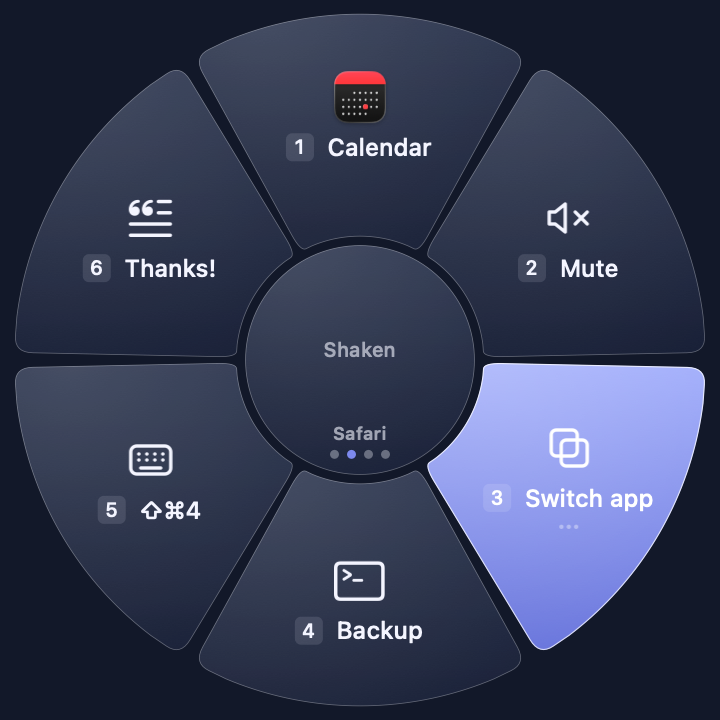
Press ⌃⌥Space, or any shortcut you record, and the same wheel opens as a launcher. Each slot can hold almost anything:
Slots show their numbers, so 1 to 6 pick one. Flip between wheels with ⌘← ⌘→ or a two-finger swipe.
Make it yours
As many wheels as you like
A wheel per app
Give Safari one wheel and Figma another. When that app is in front, its wheel opens instead of the main one.
Chain commands
Shake while dragging a result to open the wheel again. Shrink, then strip metadata, then zip.
Workflows
One slice, up to twelve steps. Drag the step cards to reorder, try each one.
Gallery
Add ready-made wheels from Settings: Photo tools, File tools, Media, Screenshots, Web search and System.
Your shortcuts, your eyes
Record any shortcut. VoiceOver reads every slot; Reduce Motion, Reduce Transparency and Increase Contrast are respected.
Pick a slot's command, right on the wheel
Right-click a slot and choose what it shows. Commands already on the wheel swap places, so the rest stay where your hand expects them. Settings › Commands does the same with a click.
Built in
Commands that fit what you drag
| Drag | Get |
|---|---|
| A photo | Convert to JPG, PNG, HEIC, AVIF or WebP · Resize to 1920 px, 1080 px or 50% · Shrink below a size limit · Remove background · Extract text · Rotate · Remove metadata · Make PDF |
| A PDF | Compress · Extract text · Split pages · Open in Preview |
| A video | Compress to 720p · Extract audio |
| Several files or a folder | Compress to ZIP · Merge into PDF · Rename in bulk with patterns like {date} Trip {n} · Copy names |
| Any file | Copy path · Copy checksum |
| A link | Open · Copy · Make a QR code · Download the file |
| Text | Save as .txt · Copy |
Results land next to the original under a new name. Nothing is ever overwritten, Esc stops a job and cleans up, and undo moves results to the Trash. Apple Shortcuts and your own scripts put their results in the same chip, and the eye on the chip opens them in Quick Look, where videos play.
Write your own. A folder with an action.toml and a short script gets the wheel, the chip, cancel and undo for free.
name = "Web ready"
icon = "globe"
accepts = ["public.image"]
steps = ["resize:1920", "strip-metadata", "./to-webp.sh"]
Privacy
Runs on your Mac. Asks before it does more.
- No account, no cloud, no analytics.
- The shake, the wheel, commands, Shortcuts and scripts need no special permission.
- Snippets and keyboard shortcuts type into other apps, so they ask for Accessibility the first time.
- Window previews in the app switcher are off unless you turn them on.
- Shared wheels and command packs show every script before anything runs.
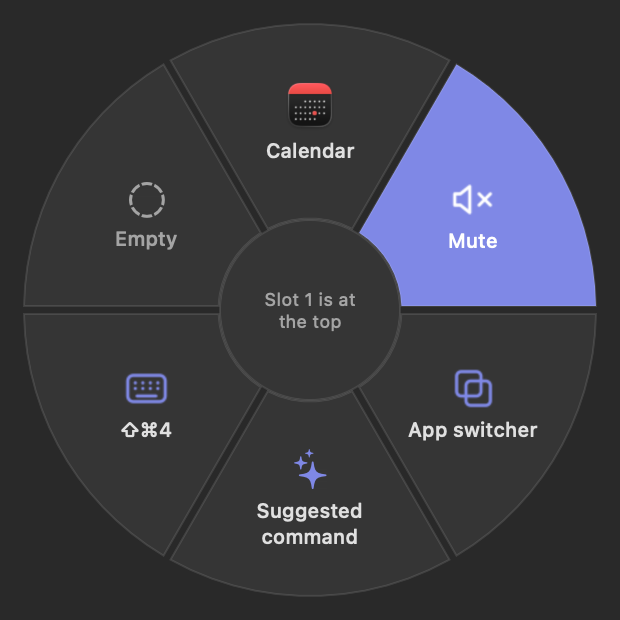
Arrange slots by dragging them in Settings.
FAQ
Questions
Is it really free?
Yes. Shaken is open source under the MIT license. There's nothing to buy and no account to make.
macOS says it can't check the app for malware.
Current builds aren't notarized by Apple yet. Install with Homebrew instead and it opens straight away: brew install --cask noxhsxrk/nox/shaken. With the DMG, open System Settings › Privacy & Security and press Open Anyway, or run xattr -dr com.apple.quarantine /Applications/Shaken.app once.
Will a normal shake of the mouse open it by accident?
No. The shake only counts while something is being dragged, so moving windows or selecting text never opens it. Without a drag you hold ⌥ while shaking, or press your shortcut. If it opens by mistake, move out of it: it closes at once and your drag carries on.
Which apps can I drag from and into?
Anything that supports drag and drop: Finder, Photos, Safari, Chrome, Mail, Slack, Figma and more. Photos and Mail hand over files a moment after the drop; Shaken waits for them.
How do updates work?
Shaken checks this site once a day and offers the new version. Help › Check for Updates installs it in place and reopens Shaken, after checking the download's SHA-256. You can turn the daily check off in Settings.
Can the glass match my Mac?
It does by default: the glass follows the accent color in System Settings › Appearance. In Settings › General › Glass you can pick Shaken blue or any color instead, and set how strongly it's tinted.